Live sessions get the attention, but many people experience your content through the replay. They may watch from another time zone, in another language, or weeks later through a link on your site. If captions are hard to follow or the video opens on an unhelpful frame, the experience can feel unfinished. And viewers may miss the value of the content.
That can leave your team doing extra work to prepare replays for different audiences: correcting terminology across languages, getting captions ready for review, or confirming that learners completed a training. For teams serving global audiences or running accessibility-focused and training programs, making each replay useful can take more effort than it should.
Sequel helps make replays easier to follow and review, with captions in your configured languages, tools to correct them, and thumbnails that give viewers a clearer sense of what they’re about to watch.
Replays that are easier to follow and manage
These updates are the first step toward a stronger on-demand experience in Sequel. They bring multi-language captions to the Media Hub and the replay player you already use.
Here’s what’s new:
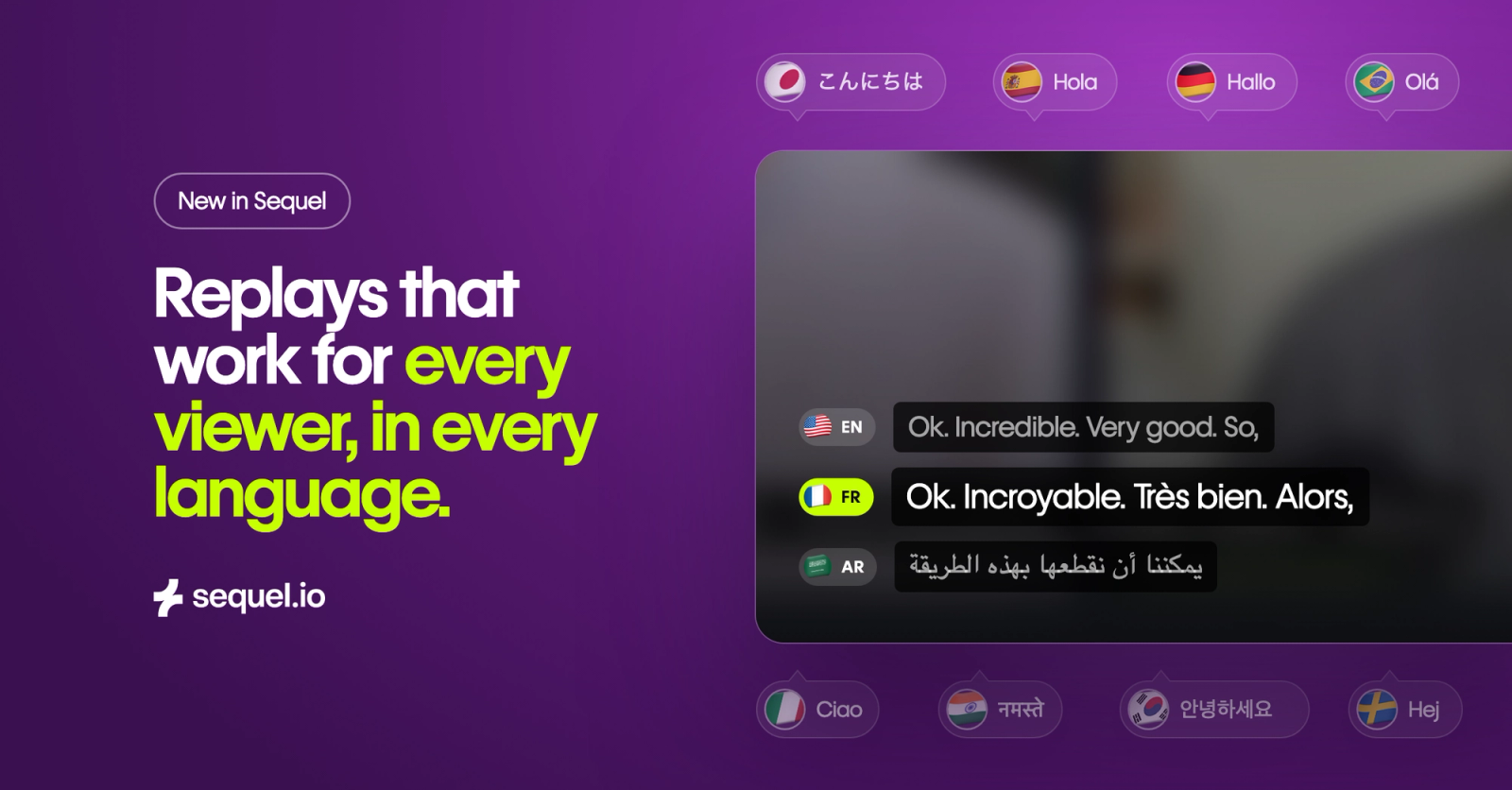
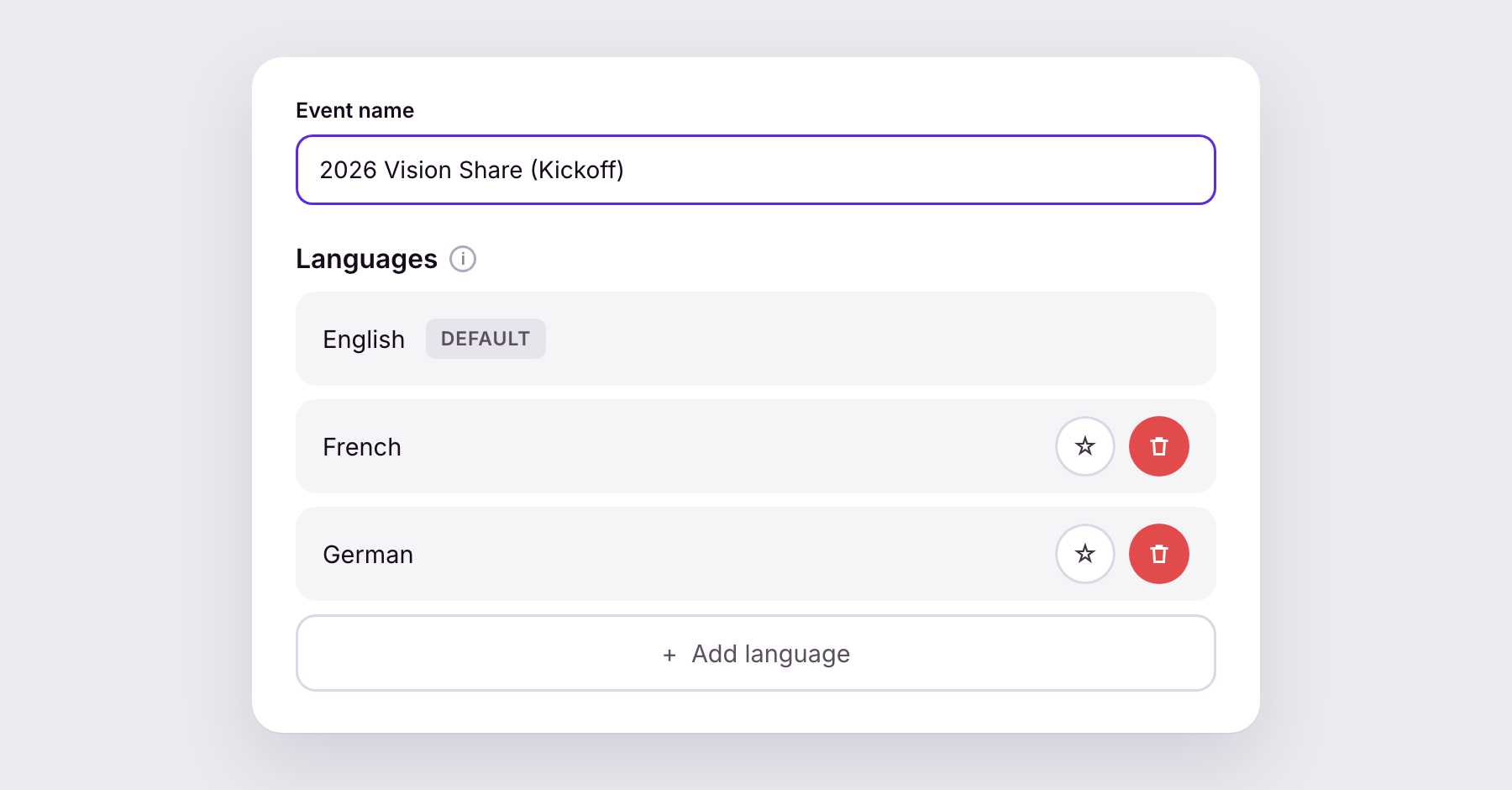
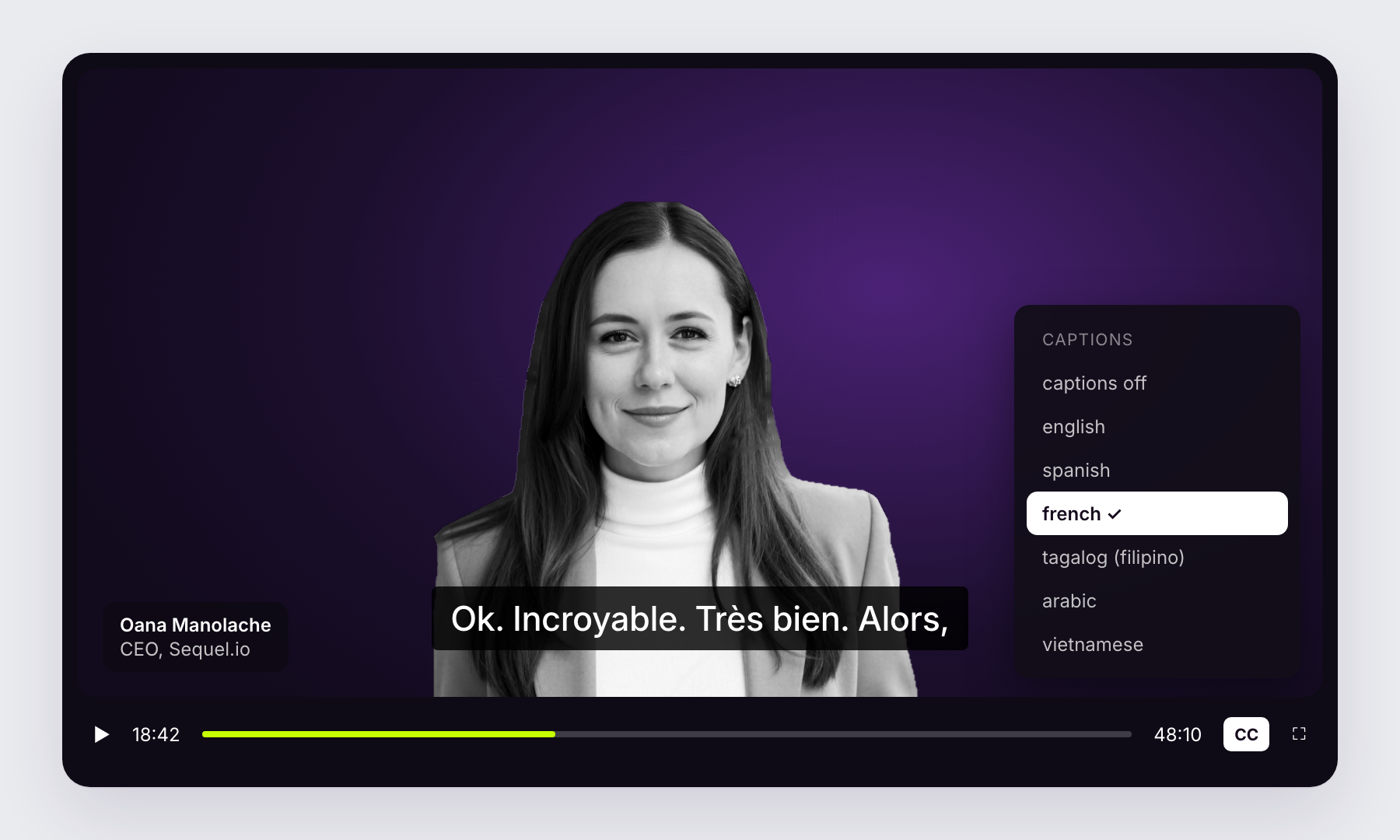
- Captions in your configured languages. When a recording finishes or you upload a video, Sequel creates a caption file for every language in your translation settings. Viewers choose a language from the CC menu in the replay player and in Media Hub embeds on your site.
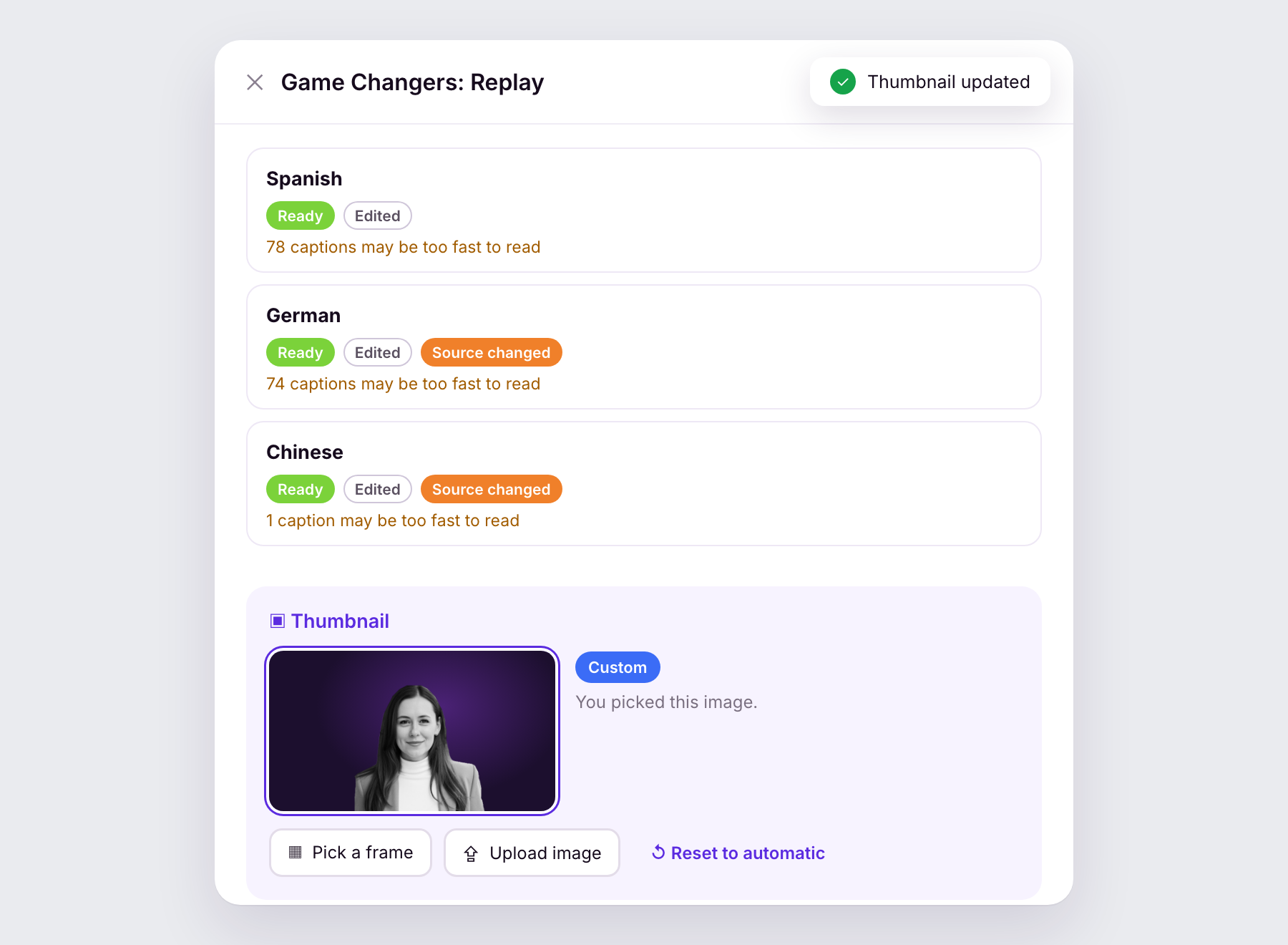
- Translations timed for viewers. Sequel translates full sentences using context and your glossary, then fits them to the original timing. If a caption may be too fast to read, the admin flags it for review.
- Ways to correct captions in any language. Edit captions in the admin, upload a reviewed file, or ask Robin, a scheduled agent, or Claude to make a correction.
- A useful thumbnail for every replay. Upload your own image, let Sequel choose a clear frame of the speaker, or select a frame yourself.
- More control over access. Ungated replay and replay preview let you choose whether viewers see a registration form and when.
Captions use your AI Studio transcript and Brand Kit dictionary, so a term corrected there can carry through to captions in every language.
What your team can do now
Help viewers follow along in their language
Every new recording or upload gets a caption track for each language in your translation settings. To add languages to videos already in your library, use Generate languages in the admin or ask Robin.
Viewers choose their preferred language from the CC menu. The same language options appear in Media Hub embeds on your site.
Correct captions without managing files separately
The Captions section in the Media Hub shows each language track, where it came from, and whether it needs attention. Open the cue editor to change a line, with the original English alongside it and matched by time. If an edit makes a caption too long to read at that language’s pace, the editor flags it.
You can also download a track as SRT or VTT, upload a reviewed replacement, regenerate a language, or restore an earlier version.
Choose the thumbnail that represents the replay
Every on-demand video now has a thumbnail shown before playback in the Media Hub, replay player, and media embeds. Sequel selects a clear frame of the speaker by default. You can upload a branded image or choose a specific frame yourself.
Preserve the work your reviewers have done
When the English source changes, Sequel updates machine translations automatically. Captions someone has edited or uploaded are not overwritten automatically. They’re marked Source changed so your team can decide what to do. Sequel asks for confirmation before regenerating a reviewed track.
Keep names and terminology consistent
Add product names, company names, and other terms to the Brand Kit dictionary. Include how a term is often misheard and whether it should be translated. Sequel applies dictionary terms to captions in every language, transcript fixes, clips, and deliverables. If you remove a term, its old spelling won’t linger.
Fix a transcript once and carry the change into captions
Word fixes made in the AI Studio transcript now carry through to replay captions. About two minutes after you stop editing, the English track rebuilds and only the changed sentences are translated again.
Delegate caption fixes
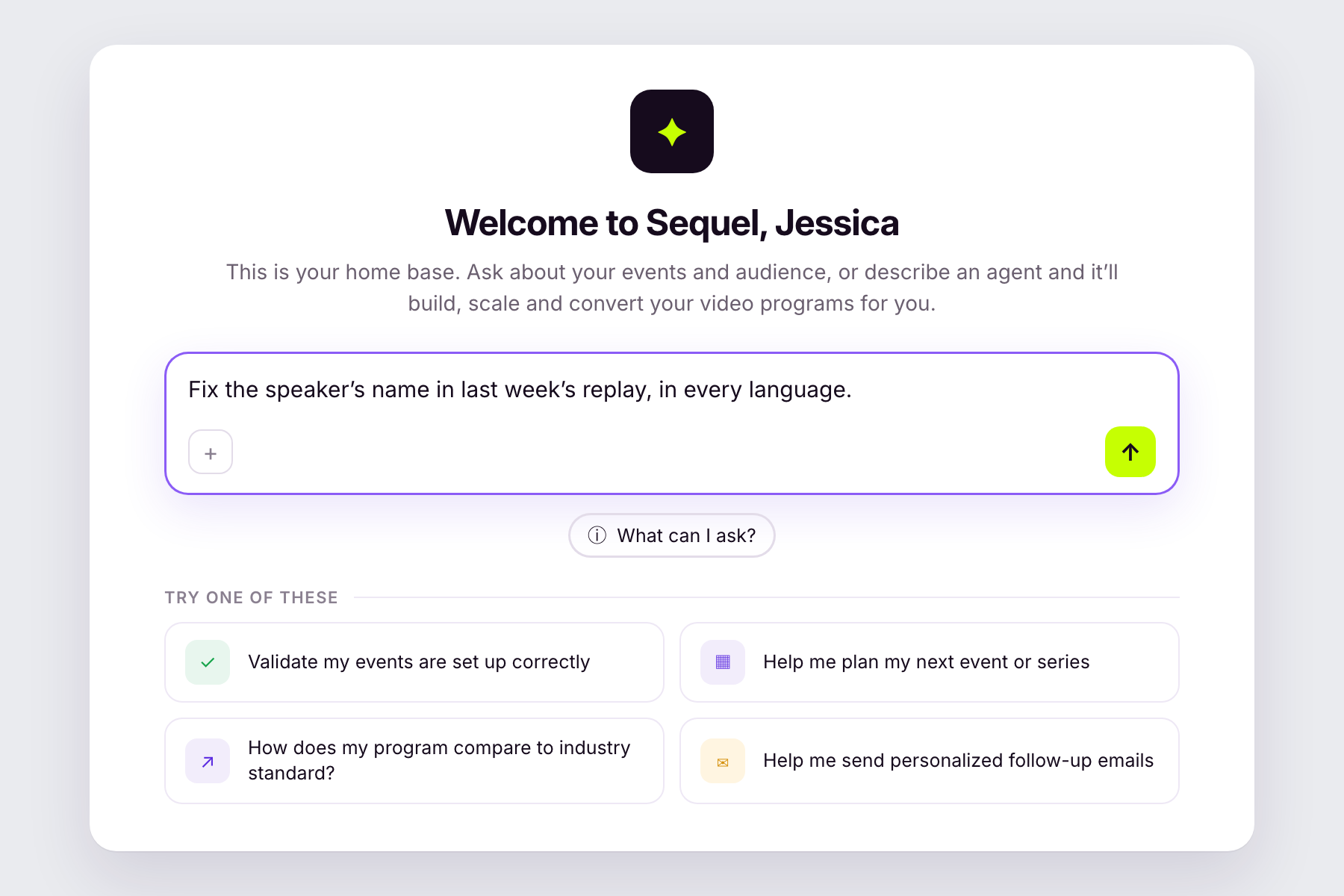
Caption tools are available to Robin in the admin, scheduled AI Agents, and clients connected through Sequel’s MCP, including Claude. You can ask in plain language. For example, “Fix the speaker’s name in last week’s replay, in every language.” The change is made with an audit trail in Sequel.
Decide when viewers see a registration form
Let anyone with the link watch after the event without registering. Known viewers will still be tracked by email, and unknown viewers will be counted anonymously.
Play the first few seconds before showing your Sequel registration form over the player. After registering, viewers will continue from where the preview stopped.
How teams are putting this to work
Publish global replays without extra production. A software company records a webinar in English and publishes the replay. Japanese, German, and Portuguese speakers choose their language from the CC menu. A regional manager spots an awkward translation, corrects two lines beside the English in the cue editor, and saves. Product names stay untranslated because they’re in the Brand Kit dictionary.
Prepare captions for legal review. A compliance-focused team downloads the English SRT, asks legal to review it, and uploads the corrected file. Sequel won’t overwrite that file automatically. If the transcript changes later, the track is flagged for review instead.
Make on-demand learning more accessible. An education team needs English and Spanish captions on every on-demand and simulive session. Captions are created automatically, and a weekly agent corrects terms from the dictionary so the team doesn’t have to edit each file by hand.
Ask Claude to handle a caption update. A marketer asks Claude to correct a product name in last week’s replay and add Spanish and French captions. The update is made from the assistant they already have open.
Getting started
Captions and thumbnails are already part of your Media Hub.
- Captions: Open a video in the Media Hub and go to its Captions section to edit, download, upload, regenerate, or restore a language.
- Older videos: New languages aren’t generated in the background for videos already in your library. Select Generate languages on the video or ask Robin.
- Dictionary: Add terms in your Brand Kit under Dictionary, one at a time or by importing a CSV.
- Thumbnails: Open a video in the Media Hub to use the automatic thumbnail, upload your own, or select a frame.
A few tips:
- Check that your translation settings include the languages your audience needs. That list determines which caption tracks are created.
- Add product, company, and speaker names to the dictionary before your next recording.
- Review any track marked may be too fast to read before sharing the replay widely.
Availability
Multi-language captions, caption tools for Robin, replay thumbnails, and ungated replay are available to all Sequel customers today.
If you're an existing customer and want help planning your on-demand library, talk to your CSM. If you're new to Sequel, get a demo.
Learn more
If you’re a Sequel customer, check out our help center and academy content:
- Speak Your Audience’s Language (Academy video)
- Conducting events in multiple languages (help article)
- Set up and customize on-demand replays (help article)