Customer dinners, roadshows, and user conferences give teams valuable time with buyers. But running them often means coordinating several tools and handoffs: ticketing and payments, guest lists, badges, check-in, and CRM updates.
Guests feel those gaps at the door. A long line, a missing badge, or a check-in issue. After the event, incomplete attendance data can delay sales follow-up. The event’s momentum (and the data behind it) can get lost.
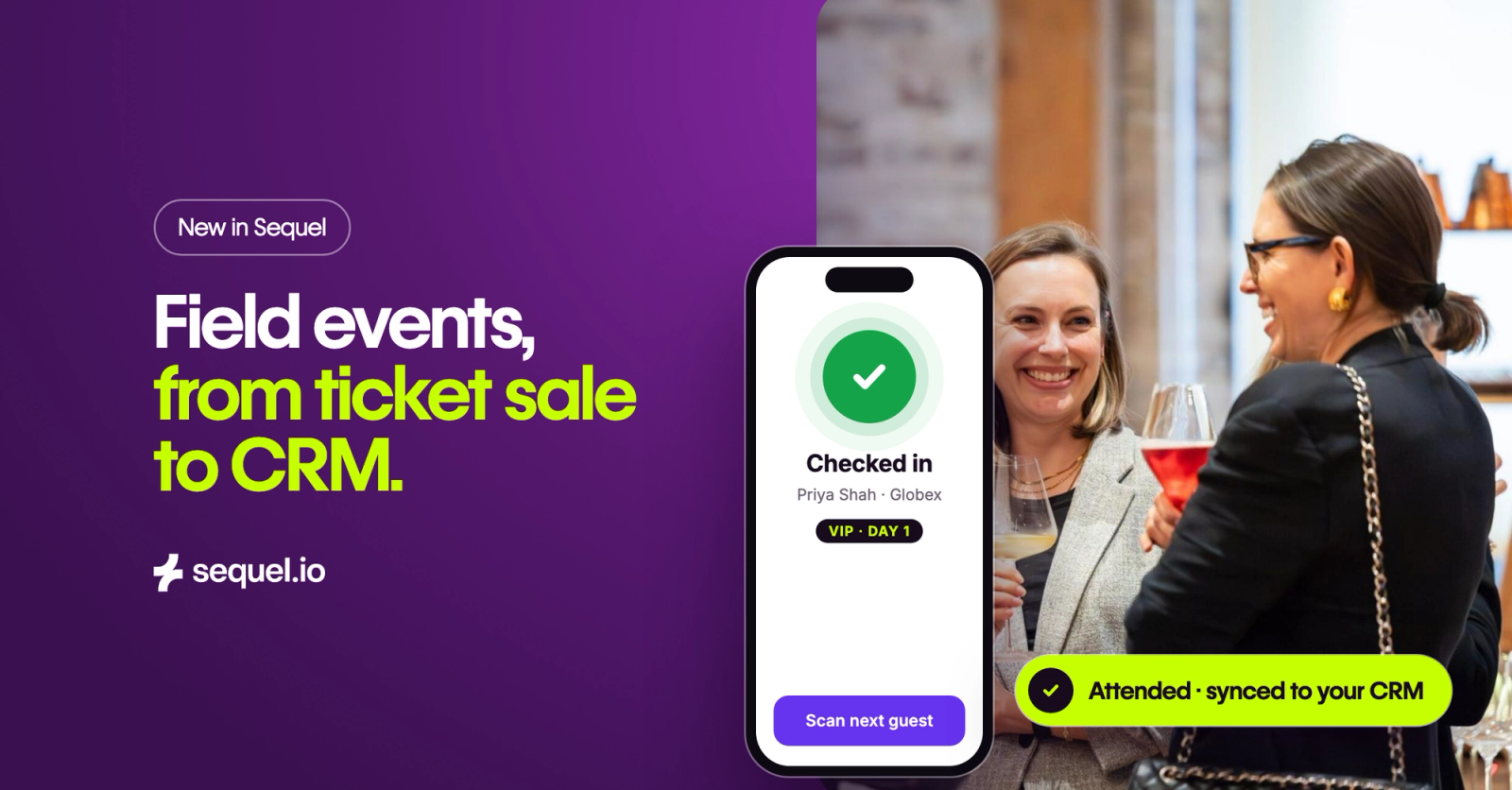
Sequel now brings registration, payments, badges, check-in, and CRM updates together around one in-person event, so your team can spend less time stitching systems together and more time with guests.
Where field events break down
Most teams use a different tool for each part of an in-person event. Each tool may work well on its own, but the friction shows up in the handoffs.
- Badges are printed by an outside vendor ahead of time, leaving walk-ins and late registrants without one.
- Door staff can’t easily tell whether someone is registered, waitlisted, or still awaiting approval.
- Multi-day conferences are set up as one long session or several separate events, which can mean confusing emails and calendar invites.
- Paid tickets require a separate checkout, with no clear connection between who paid, registered, and attended.
- The CRM gets only a few statuses, so a guest who cancelled may look the same as someone who didn’t show.
The result is manual reconciliation after the event, plus CRM records your sales team may not be able to trust.
One event record from registration to the CRM
We built these updates around the full day of a field event and the challenges customers experience at dinners, roadshows, and conferences.
Registration, payment, badges, check-in, and CRM updates all connect to the same in-person event in Sequel. The person who buys a ticket is the same person who receives a badge, checks in at the door, and appears accurately in your CRM.
Here’s how it works:
- Tickets and payments: Offer multiple ticket types, add coupons, and accept payment through your Stripe account in the registration flow.
- Badges: Design a badge once and print it from the participants table or the door scanner using a printer your device can access.
- Phone-based check-in: Door staff open a scanner link in their phone’s browser (no app or login required) and scan the QR code from an attendee’s confirmation email or badge.
- Events up to five days: Use one registration, calendar invite, and check-in process for the full event.
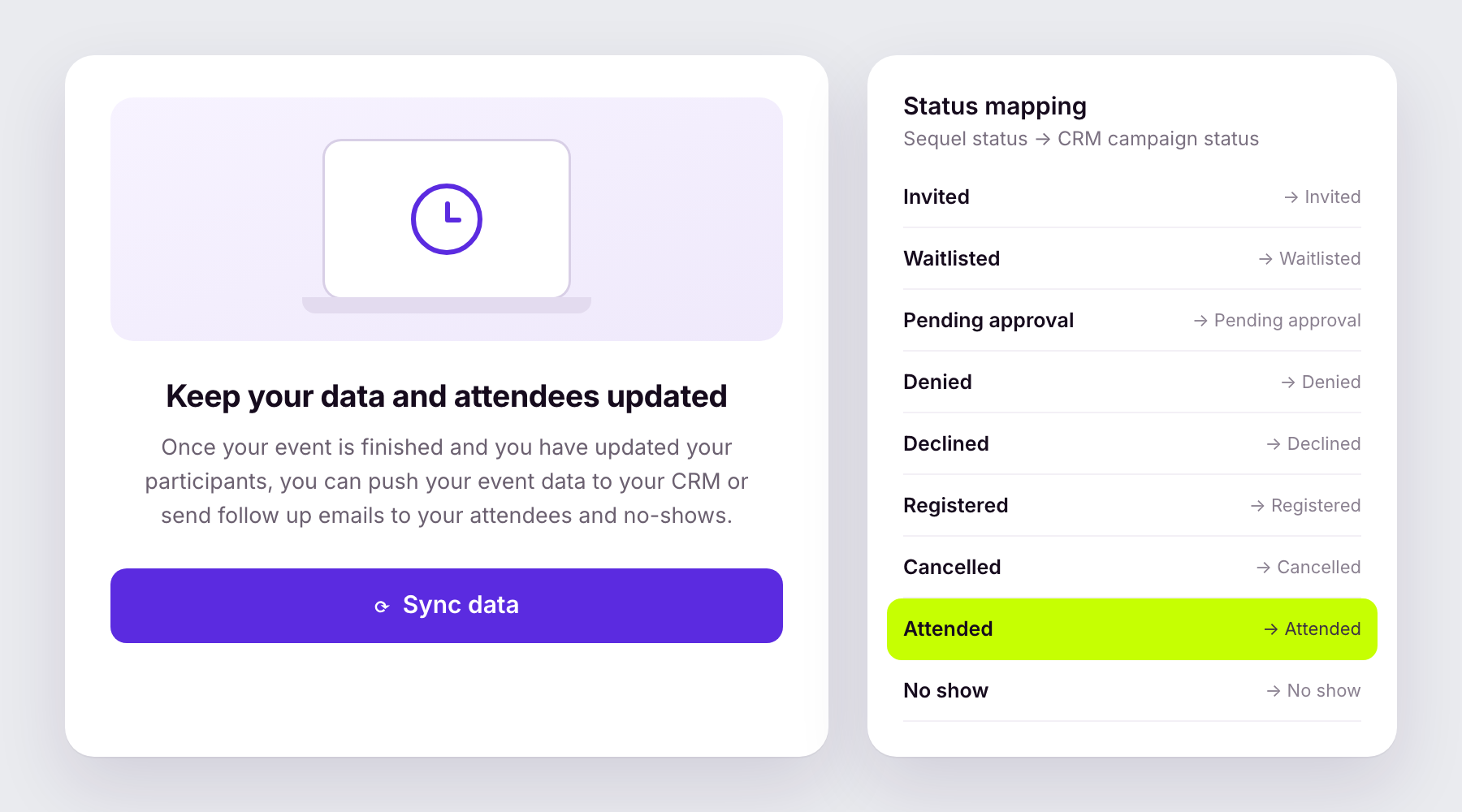
- CRM status updates: Map registration statuses from invited through attended and send them to your CRM, so cancellations and no-shows are recorded separately.
Because these tools are part of your Sequel event and use your existing CRM connection and mappings, there’s no separate system to set up.
What your team can do now
Offer the right ticket to the right guest
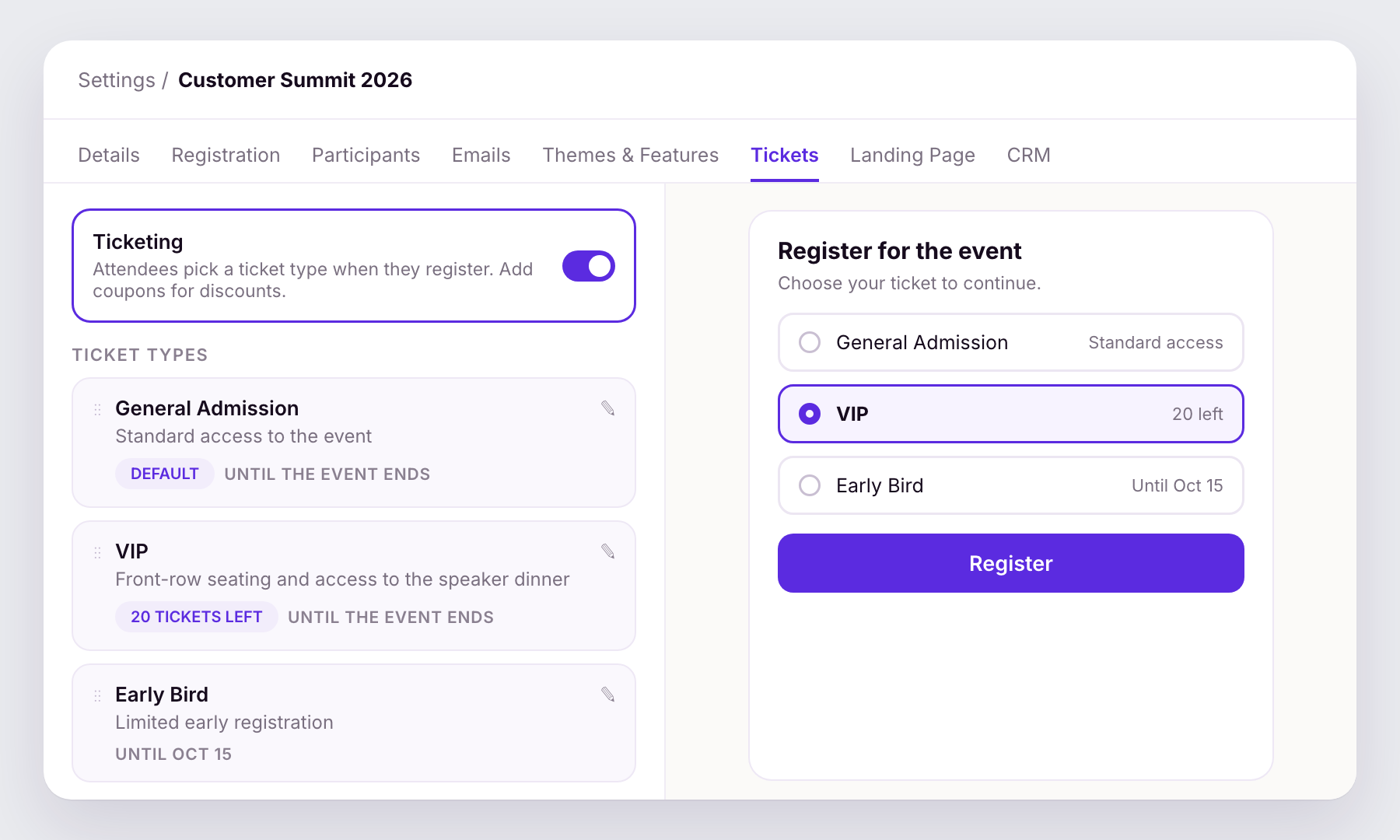
Create General, VIP, Early Bird, or other ticket types, each with its own description, capacity, sales window, and badge. Attendees choose a ticket when they register. You can hide a ticket from the public list and share it by direct link, this is useful for press or partner passes.
You can also translate ticket names and descriptions like other registration questions. Each attendee’s ticket type carries through to the participants table, exports, badges, and door scanner.
Take payments through Stripe
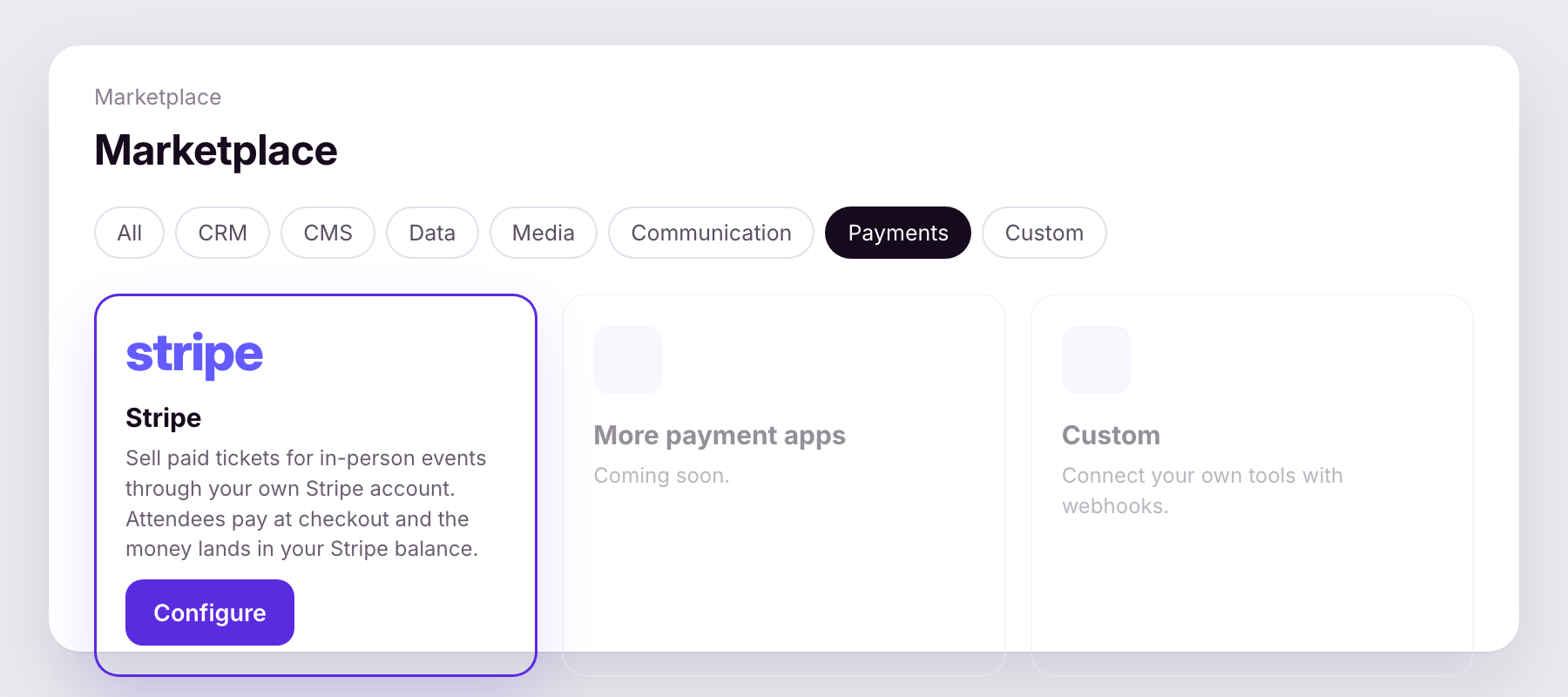
Connect your Stripe account once, and payments go directly to you. Sequel never holds the funds. Checkout uses Stripe’s payment form in your registration flow.
Starting checkout holds a seat for five minutes, helping prevent two people from purchasing the last available VIP spot. Coupons can offer a percentage or fixed amount, apply to selected ticket types, have usage or date limits, or be issued as single-use codes for partners and sponsors.
If you refund someone in Stripe, their registration updates to Refunded automatically, their seat becomes available again, and they can no longer check in.
Print badges at the door
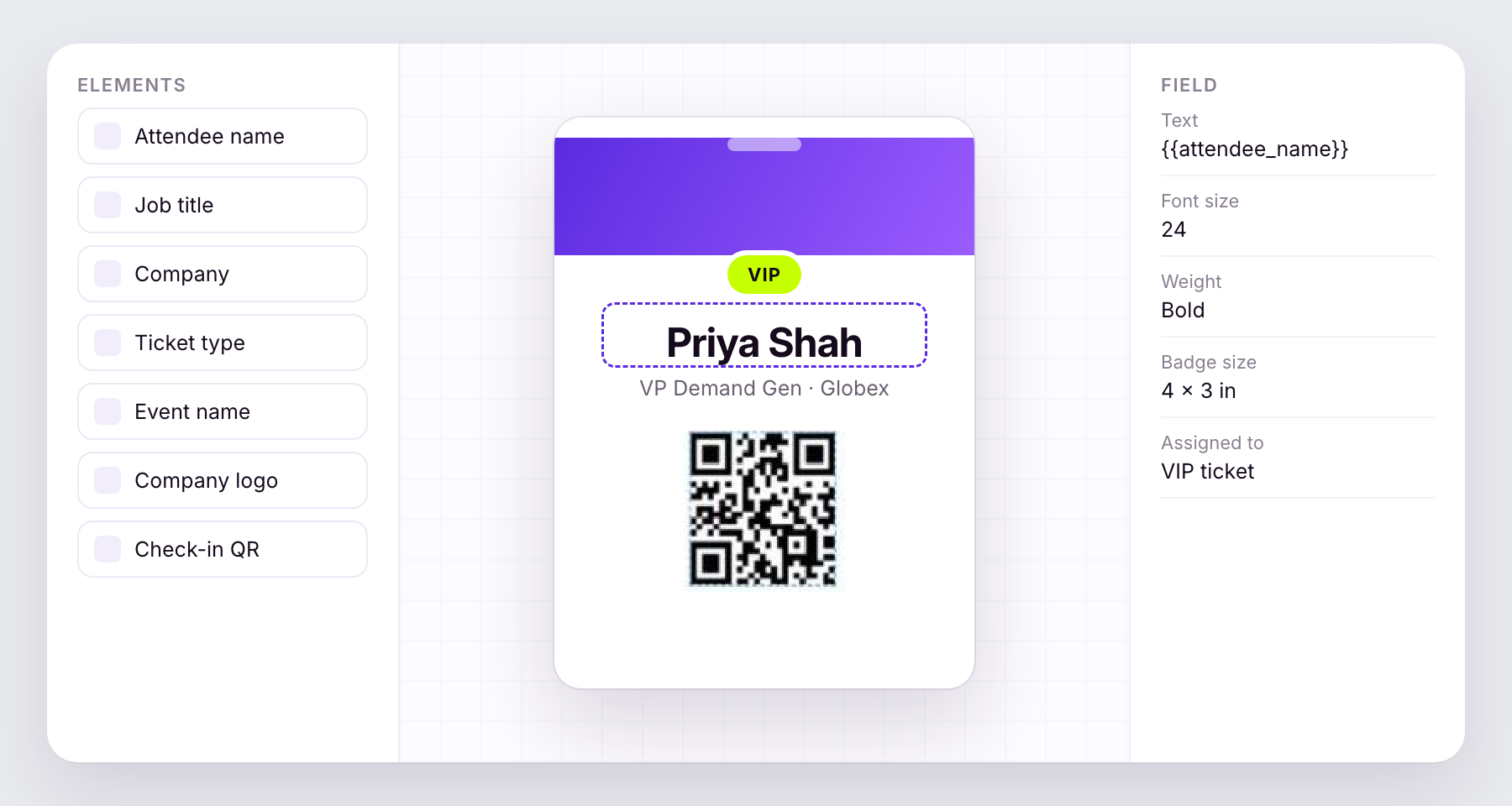
Design badges in the same drag-and-drop editor Sequel uses for certificates. Add names, titles, company, ticket type, logos, registration answers, and a QR code. You can assign a different badge to each ticket type.
Bulk print badges from the participants table the night before, or print one at the door for a walk-in. Badges print as PDFs through your regular print dialog, so Brother and DYMO label printers, Zebra thermal printers, AirPrint, and office printers work without installing anything.
Move people through check-in faster
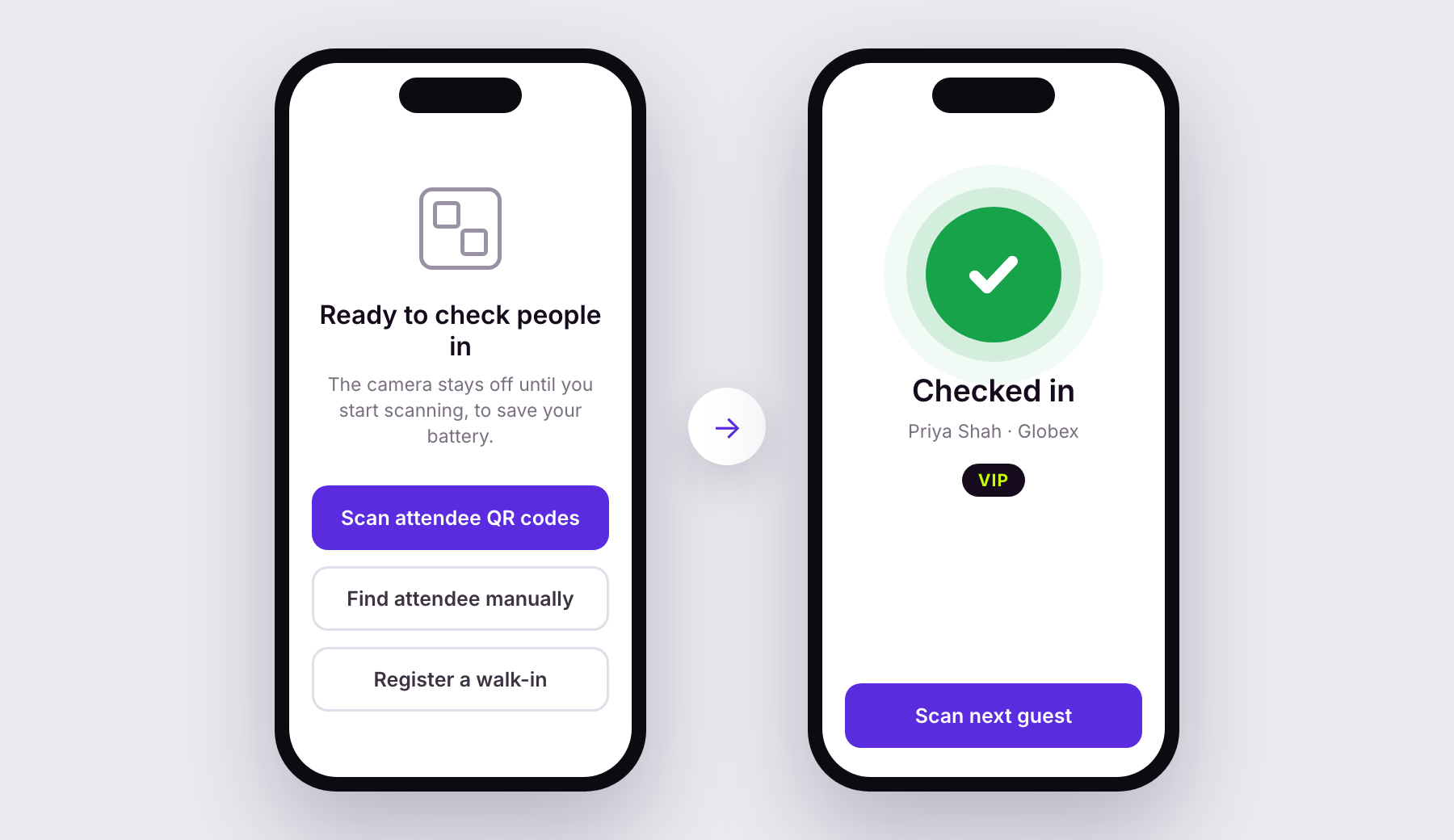
The in-person dashboard displays a QR code for the scanner link. Scan it with a phone to open the scanner in its browser. The camera reads each attendee’s QR code and records their check-in; a sound and color flash tell staff what happened.
If someone has lost their email, search by name. If someone arrives without registering, add them as a walk-in and check them in on the spot. If the venue’s Wi-Fi drops, staff can let the person in; the check-in will sync when the connection returns.
Keep the guest list accurate
The scanner displays each person’s registration status and won’t check in anyone who isn’t cleared to attend, including waitlisted, pending, and denied registrants. A QR code on a badge works just like the one in the attendee’s email.
Run a conference across several days as one event
Standalone in-person events can run for up to five days, with a start and end date instead of a single duration. Registration emails show the full date range. Calendar invites appear as one all-day block across the event, with exact times in the description. Reminders keep their existing timing, and check-in analytics are labeled by day.
Send the full registration picture to your CRM
Sequel can send the full registration lifecycle to your CRM: Invited, Waitlisted, Pending approval, Denied, Declined, Registered, Cancelled, Attended, and No show.
Registration changes are sent as they happen. Attended and No show are sent when you resync after the event. This works with Salesforce, HubSpot, Marketo, Pardot, and webhooks. HubSpot doesn’t have native fields for Invited, Waitlisted, or Pending approval, so those statuses keep their current behavior there.
Set status mappings at the company level, then override them for an individual event when needed. Choose whether unmapped statuses keep their current behavior or are dropped. If your CRM rejects an update, it appears in CRM Logs, where you can retry it.
How teams are putting this to work
A three-day customer conference. The events team sets up one in-person event running Tuesday through Thursday. Attendees register once and receive one calendar block for all three days. The team bulk prints badges from the participants table the night before. At the door, staff can register walk-ins and print their badges on a label printer without installing software.
An executive dinner with paid and complimentary seats. Marketing offers General and VIP tickets, shares a hidden Press ticket by direct link, and creates single-use codes for partners. Payments go to the company’s Stripe account. If a guest requests a refund, the team issues it in Stripe and the seat becomes available again.
Campaign reporting in the CRM. Marketing ops maps Sequel statuses to campaign statuses once at the company level. A registrant who cancels through their email link appears in the CRM as Cancelled, not No show. Waitlisted guests aren’t counted as registered. After the event, the team resyncs to send Attended and No show based on door check-ins.
Getting started
You’ll find these tools in your in-person event in the Sequel admin:
- Ticket types and coupons: the event’s Tickets tab
- Badge designs: the Badges tab
- CRM status mappings: the company settings and each event’s CRM tab
- Door scanner link: the in-person event dashboard
To accept payments, connect Stripe under Marketplace > Stripe.
A few tips before your event:
- Turn on Test payments and run through checkout with Stripe test cards before accepting real payments.
- Print a test badge on the printer you’ll use at the venue, and preview the design with sample data.
- Ask door staff to try a check-in, name search, and walk-in registration before guests arrive.
- Add a post-event resync to your checklist. Attended and No show are sent to your CRM when you select Resync data on the event’s CRM tab.
- Multi-day support applies to standalone in-person events. In-person sessions within a series or summit, and virtual events, keep their current timing limits.
Availability
These in-person event improvements are available to Sequel customers today.
If you’re an existing customer and want to use them at an upcoming field event, talk to your CSM. If you’re new to Sequel, get a demo.
Learn more
If you’re a Sequel customer, check out our help center and academy content:
- Run In-Person Events in Sequel (Academy video)
- In-Person Events: Build, communicate, and act on attendance data (help article)