How to Livestream a Virtual Event (Plus the Best Platforms to Use)
Livestreaming an event is not the same as joining a Zoom call. When you are broadcasting to hundreds or thousands of attendees, the technical bar is higher, the production quality matters more, and the margin for error shrinks. A bad audio connection in a team meeting is annoying.
A bad audio connection in a product launch with 2,000 registered attendees is a problem that costs you pipeline.
The good news is that you do not need a broadcast studio to pull this off. The equipment is affordable, the platforms handle most of the technical complexity, and the production skills are learnable.
You just need to know what to plan for.
Key Takeaways:
- You don't need a massive budget. A $150 mic and an ethernet cable are more important than a 4K camera.
- The livestream platform market is consolidating in 2026; choose a platform that won't lock you into a sunsetting product.
- The highest-converting events use an "embedded" model (like Sequel.io) to keep traffic and data on your own website.
What Actually Happens When You Livestream
Your camera and microphone capture video and audio. An encoder (software or hardware) compresses that feed into a streamable format, usually using RTMP (real time messaging protocol). The encoded stream gets sent to a CDN (content delivery network), which is a global network of servers that distributes your video to viewers wherever they are. Viewers watch through an HTML5 video player embedded on your site or hosted on your platform.
The reason you need a platform instead of doing this yourself: building and maintaining CDN infrastructure for reliable, low-latency video delivery to thousands of simultaneous viewers is expensive and complicated. Livestreaming platforms exist so you do not have to solve that problem.
The Equipment You Actually Need
The gear you need depends on the scale of your event, but the basics are simpler than most people assume.
For Simple Webinars (Single Presenter)
- The 90% Setup: A recent laptop, a quality microphone, and decent lighting are all you need to get started.
- Camera: A 1080p external webcam (like the Logitech C920 or Brio) is a worthwhile upgrade, but a modern built-in laptop camera works in a pinch.
For Conference-Style Productions (Multi-Speaker)
- The Setup: You will need multiple cameras, a hardware encoder or streaming software (like OBS), and a dedicated producer to switch between video feeds.
- The Strategy: At this level, you are producing a TV show, not just hosting a call. It is highly recommended to hire a production partner or train an internal team member specifically for this role.
The 2 Non-Negotiables for ANY Livestream
1. Flawless Audio (Strictly Necessary) Viewers will tolerate slightly soft video, but they will leave within minutes if your sound is muddy or echoing.
- The Fix: Do not use your laptop's built-in mic. Invest in a USB microphone in the $100-$200 range. The Rode PodMic, Shure MV7, or Audio-Technica ATR2100x will drastically improve your production value.
2. Hardwired Internet Your internet connectivity matters more than any single piece of equipment.
- Speed: You need a minimum of 5 Mbps upload speed for reliable 1080p streaming (10 Mbps or more is ideal).
- Connection: Always use a wired ethernet cable. Wi-Fi is a gamble you do not need to take. (Pro-tip: Keep a mobile hotspot nearby as a fail-safe backup).
Why this works better:
- It creates distinct visual buckets based on the user's specific situation (Simple vs. Conference).
- It uses numbers and bold text to highlight the exact specs and brand names readers are looking for (5 Mbps, $100-$200, Shure MV7).
- It clearly separates the "nice-to-haves" from the "non-negotiables" (Audio and Internet).
Top 5 Platforms to Host Your Livestream
That means fewer choices, more uncertainty for existing customers, and a real reason to look carefully at who you're betting on for your 2026 event program.
We evaluated five platforms based on what actually matters to B2B marketing teams running livestream events: production quality, website integration, engagement tools, analytics depth, content repurposing, and CRM connectivity.
Here's how they compare.
1. Sequel.io
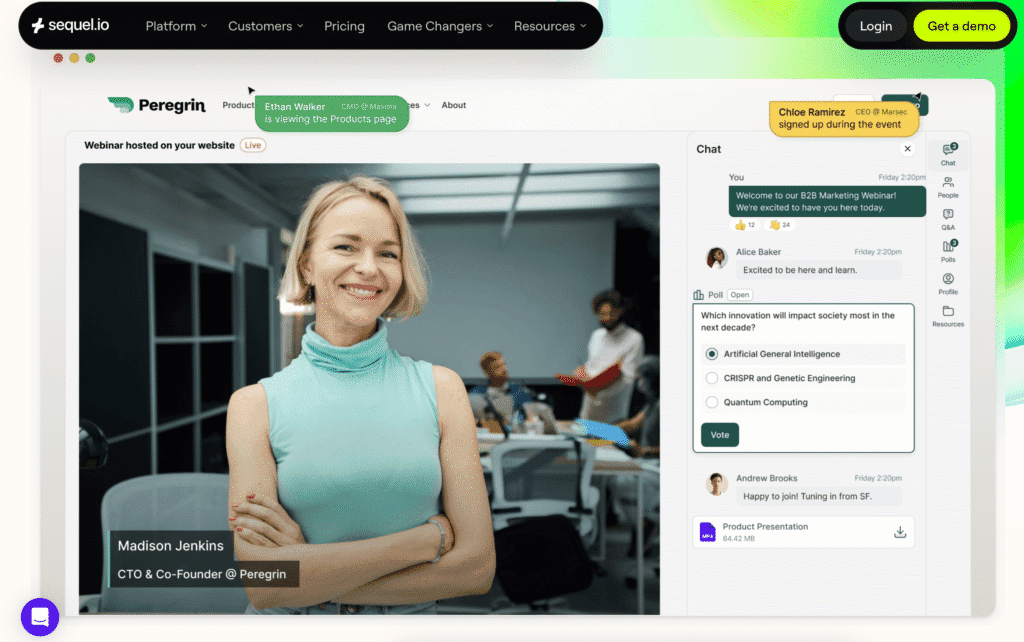
Best for: B2B marketing teams that want livestreams to drive traffic, engagement data, and pipeline on their own website.
Why Sequel Ranks #1
Registration, the live session, the replay — all of it happens on your site.
That embedded model, at its heart, is a data play.
Sequel's Audience Insights tracks what attendees did before the event (which blog posts they read, which product pages they visited), what they did during (chat participation, poll responses, Q&A engagement, watch duration), and what they did after (did they visit pricing? come back for the replay? download a case study three days later?).
That full behavioral picture flows into HubSpot, Salesforce, or Marketo in real time, so sales gets buying-signal context, not just a registration notification.
What Customers Say
- "Hosting webinars directly on our domain is a game-changer for brand control and data integrity." Customers consistently cite the embedded model as the primary reason they chose Sequel over alternatives.
- "The biggest advantage is that everything happens on your own site (registration, live session, and replay) so you don't lose traffic to third-party platforms." Multiple reviewers highlight how the on-site model eliminates the audience leakage that plagues other platforms.
- "I appreciate the opportunity to use the recordings with AI features, allowing us to create transcripts, short clips, social media posts, and even blogs." Sequel AI Studio turns a single live session into a library of reusable content assets, including AI-dubbed multilingual versions.
Quotes from Our Sales Conversations
- From Zoom: There are manual processes everywhere, like exporting registrant lists, creating clips, adding panelists. HubSpot integration breaks constantly. As one customer described it: "There's just a lot of aspects to Zoom that are very manual."
- From Goldcast: Pricing concerns ("they charge a freaking buttload for extra webinars"), video production capped at 720p, and growing anxiety about the Cvent acquisition eroding the product.
- From ON24: Outdated UI, rigid landing pages, and unreliable integrations. One customer summarized their experience as "incredibly outdated, user experience, user interface, just incredible. There's no innovation whatsoever."
- From Livestorm: Works for basics, but sends traffic to Livestorm's domain. Customers looking to keep events on their own website find Livestorm can't deliver that. One customer noted they were "sending people off of our website. So then we don't control the next step of the funnel."
Key Strengths of Sequel.io
- Native website embedding: no-code setup, registration through replay all on your domain
- Full-journey analytics: pre-event, during-event, and post-event visitor behavior tracked through Audience Insights
- Sequel AI Studio: automated clip creation, blog posts, social content, transcripts, and AI dubbing in 100+ languages
- Production quality: full HD streaming, production studio with custom scenes and speaker layouts, backstage/green room
- Engagement tools: live chat, polls, Q&A, networking circles, breakout rooms
- Scale: supports up to 2 million concurrent viewers
- CRM integration: real-time sync with HubSpot, Salesforce, Marketo
Pricing
2. Zoom Events
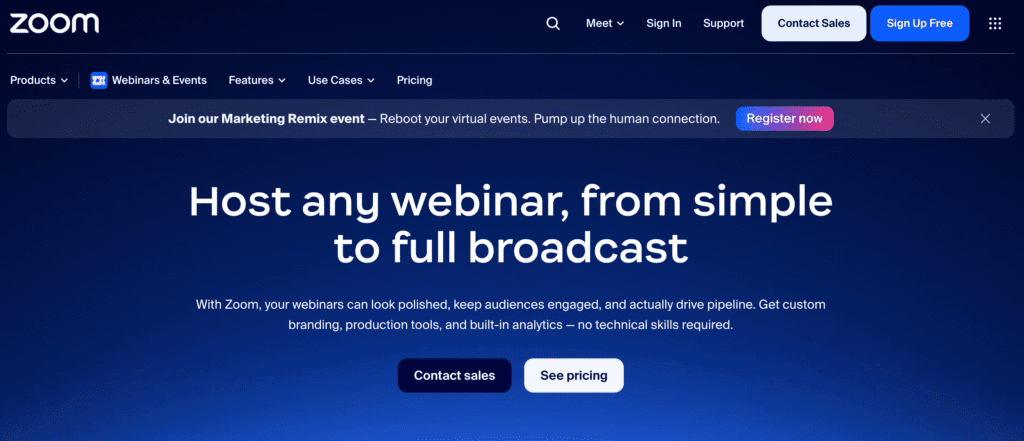
Best for: Organizations that run high volumes of simple webinars and already have Zoom as their default meeting tool.
Overview
What Customers Say (from Sequel's competitive data)
- Manual everything: Registration management, CRM syncing, clip creation, panelist setup all require manual work. One customer evaluating Sequel described managing Zoom webinars as requiring copy-pasting webinar IDs just to get data into HubSpot.
- Rigid editing: Once you create an event in Zoom, you can't meaningfully modify it. As one customer put it: "If you create something in Zoom and you start it, you're done."
- Polling limitations: Polls must be created ahead of time, offering no flexibility during a live session.
- No website embedding: Zoom events live on Zoom. You can share links, but you cannot embed the experience on your own site, which means your audience leaves your website and your analytics lose the thread.
- Basic analytics: Post-event reporting is vague and requires digging to see meaningful engagement data.
Key Strengths
- Universal adoption — virtually zero learning curve for attendees
- Reliable infrastructure at scale
- Breakout rooms for interactive formats
- Affordable entry point for teams already on Zoom
Limitations
- No native website embedding: all events live on Zoom's domain
- Limited content repurposing: no built-in AI clip creation or content workflows
- CRM integrations are fragile, especially with HubSpot
- Brand customization is minimal: events look and feel like Zoom, not like your company
- Analytics are shallow compared to purpose-built event platforms
Pricing
3. Bizzabo
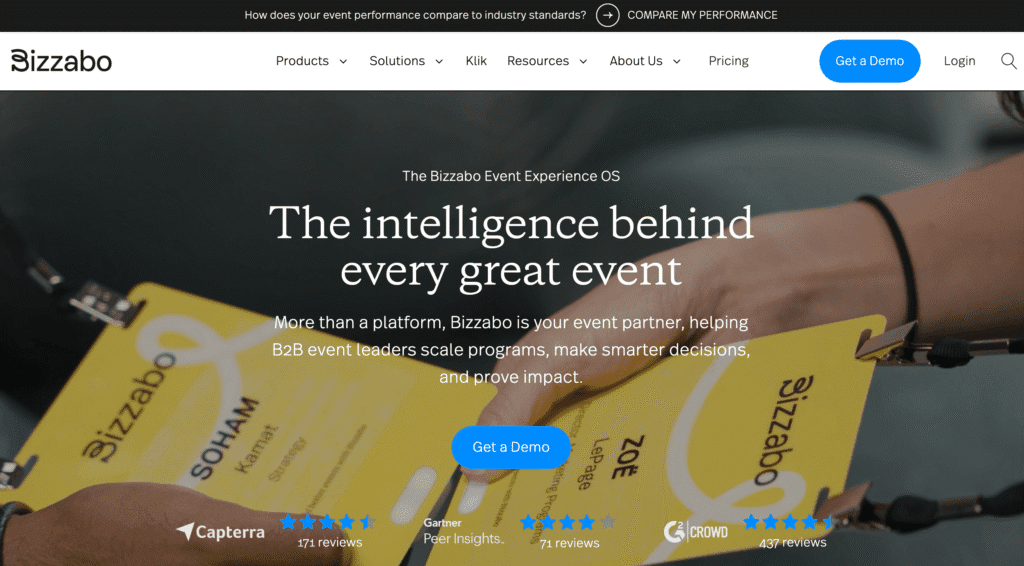
Best for: Mid-market and enterprise teams running a mix of virtual, hybrid, and in-person events who want unified event data flowing into their CRM.
Overview
What Customers Say
Key Strengths
- Covers virtual, hybrid, and in-person in one platform
- Strong event data and pipeline attribution reporting
- CRM integrations designed for marketing ops workflows
- Registration and ticketing for in-person events
- Klik SmartBadge technology for in-person engagement tracking
Limitations
- Heavier than needed if your primary use case is webinars or livestreaming
- Virtual event experience is less refined than purpose-built webinar tools
- No native website embedding, which means events live on Bizzabo's platform
- Higher price point reflects the breadth of the platform
- Content repurposing and AI features are not a core differentiator
Pricing
4. Cvent (now includes ON24 + Goldcast)
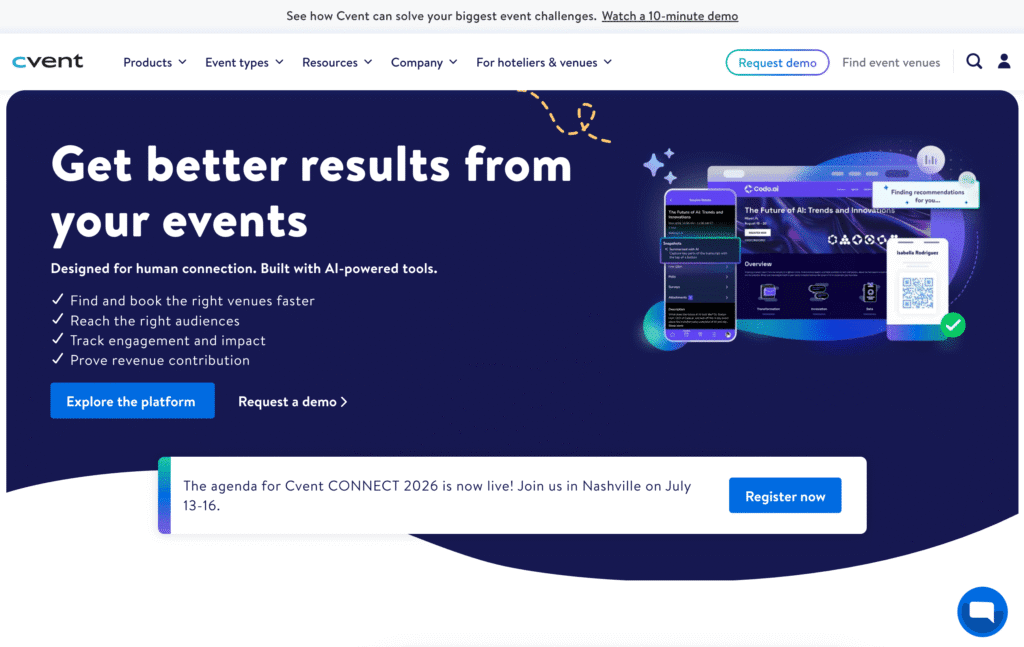
Best for: Large enterprises that want a single vendor for the full spectrum of in-person, virtual, and hybrid event management.
Overview
ON24 adds enterprise webinar infrastructure with engagement scoring. Goldcast adds polished virtual event experiences and AI content repurposing.
On paper, it's compelling. In practice, it's three products being stitched together under one company.
What Customers Say (from Sequel's competitive data)
- Integration uncertainty: Customers currently on Goldcast report early warning signs. One described the situation: "We have a new CSM and we can't even get a meeting with them because they're changing their entire backend platforms."
- Pricing concerns: Goldcast is consistently described as expensive, and customers worry Cvent's consolidation will push prices higher. ON24 is described as feature-complete but outdated in UX.
- Historical precedent: Multiple customers reference Cvent's acquisition history as a pattern: acquire, lock in multi-year contracts, then sunset the acquired product into Cvent's core platform. As one customer noted: "Once they got all those former customers on multi-year, then they said, well, now that product's going to be sunset."
- ON24 frustrations: UI is considered outdated, landing pages are rigid, and integration quality (especially with Marketo) has historically been problematic.
Key Strengths
- Widest feature portfolio: in-person, virtual, hybrid event management
- ON24's enterprise-grade webinar security and compliance
- Goldcast's AI content repurposing workflows
- Deep enterprise relationships (30,000+ Cvent customers)
- Engagement scoring and analytics across event types
Limitations
- Three products still being integrated and no public timeline for unification
- Most expensive option on this list
- Existing ON24 and Goldcast customers face product roadmap uncertainty
- Risk of feature consolidation reducing choice
- Does not embed on your website: events live on vendor domains
- Buyers should ask detailed questions about which features live where and how pricing works across the combined portfolio
Pricing
5. Livestorm
Best for: Teams running frequent marketing webinars or product demos where the priority is getting attendees in the room with zero download friction.
Overview
For teams running recurring webinars at moderate scale, Livestorm makes setup fast and attendance friction nearly nonexistent.
What Customers Say
- Traffic leaves your site: One of the most frequent complaints. Livestorm events live on Livestorm's domain, so you lose control of the funnel. A customer switching to Sequel described the problem: their replays sent people to Livestorm's archive, and they couldn't "control the next step of the funnel."
- Limited data capabilities: Customers note Livestorm lacks the engagement analytics and cross-event data intelligence that purpose-built event marketing platforms offer.
- Content repurposing is basic: AI repurposing capabilities are limited — largely equivalent to a direct OpenAI API call, meaning you'd get the same result using ChatGPT directly.
- EMEA popularity: Livestorm has a strong foothold in European markets, which can be a factor for global teams.
Key Strengths
- Zero-friction, browser-based attendee experience: no downloads ever
- Fast setup for recurring webinars
- Solid for simple webinar formats (presentation, Q&A, demos)
- Automated email sequences
- Good basic integrations (HubSpot, Salesforce, Zapier)
Limitations
- Events live on Livestorm's domain: not embeddable on your website
- Content repurposing features lag behind competitors
- Limited engagement analytics compared to purpose-built event platforms
- Not suited for complex conferences, hybrid events, or large-scale productions
- No multi-track agenda or virtual expo capabilities
Pricing
Quick Comparison Table
CriteriaSequelZoom EventsBizzaboCvent (ON24 + Goldcast)LivestormWebsite embedding✅ Native, no-code❌❌❌❌Full-journey analytics✅ Pre/during/post eventBasic✅ Event data layer✅ (ON24 engagement scoring)BasicAI content repurposing✅ AI Studio (clips, blogs, social, dubbing)❌Limited✅ (Goldcast AI)BasicCRM integrationHubSpot, Salesforce, Marketo (real-time)HubSpot, Salesforce (fragile)HubSpot, Salesforce, MarketoHubSpot, Salesforce, Marketo, EloquaHubSpot, Salesforce, ZapierIn-person events❌ (pair with dedicated tool)❌✅✅ (Cvent core)❌Production qualityFull HD, production studio, custom scenesStandard HDStandardHD (varies by product)Standard HDMax concurrent viewers2M10K–50K (plan dependent)Plan dependent100K+ (ON24)3KG2 satisfaction score98.25%~90%~92%~88% (ON24), ~92% (Goldcast)~90%Independent company✅✅ (Zoom)✅❌ (PE-backed consolidation)✅PricingMid-market to enterpriseLow–midEnterpriseEnterprise (highest)Low–mid
The Bottom Line
No other platform offers native website embedding combined with full-journey analytics and AI-powered content repurposing.
If you need a single vendor covering in-person, virtual, and hybrid at enterprise scale (and you're comfortable with the integration risk) Cvent's combined portfolio is the most comprehensive option, albeit the most expensive and least certain.
If you run simple, recurring webinars and want zero-friction attendance, Livestorm or Zoom Events will get you started quickly, but you'll likely outgrow both as your event program matures and you start caring about website traffic, engagement analytics, and content ROI.
Once you've chosen your platform and gathered your equipment, the success of your event comes down to execution.
Here is where a lot of teams over-invest in the wrong things and under-invest in the right ones.
Tips on Running a Livestream Event
1. Audio is more important than video.
2. Lighting is more important than your camera.
3. Your background communicates something whether you want it to or not.
4. Frame yourself correctly.
For a deeper rundown on visual presentation, see our webinar presentation tips.
Keeping Your Audience Engaged During a Livestream
Build in a pause every 10 to 15 minutes. A poll, a Q&A prompt, a chat question. It does not need to be elaborate. Just something that asks the audience to do something other than passively watch.
Have a moderator. Someone who is not the presenter, watching the chat, surfacing good questions, flagging technical issues. The presenter should not be splitting attention between delivering content and reading a chat stream.
If your platform supports it, use networking features (breakout rooms, one-on-one chats) before or after the main session. The social component of events is underrated online. People attend conferences partly for the content and partly because they want to meet other people in their field. Giving them a space to do that, even virtually, increases the chance they come back for the next one.
For more on this, see our guide on making webinars more engaging.
After the Livestream: Replays and Repurposing
Get the replay published immediately. Viewers who missed the live session are most likely to watch within the first 24 to 48 hours. Every day you delay, replay engagement drops.
If your platform auto-publishes the replay (Sequel does this), you capture that window without any manual work.
Then break the recording apart. Pull clips for social media. Transcribe it and turn the transcript into a blog post. Extract quotes for email campaigns. If there was a Q&A, compile the questions into a standalone FAQ resource. One 60-minute session can produce a month of content if you plan for it.
For a full repurposing playbook, see our guide on how to repurpose webinar content.
Livestreaming a Hybrid Event
The biggest mistake in hybrid production is treating the livestream as an afterthought, just pointing a camera at the stage and hoping the remote audience feels included. They will not.
The audio from a room mic picks up echo and crowd noise. The camera angle is too wide to see speaker expressions. The chat goes unmonitored because the moderator is busy with the in-person crowd.
A better approach: treat the livestream as its own production with its own camera feed, its own audio (a direct mic feed, not a room capture), its own moderator watching the online chat, and its own engagement moments. The in-person and remote audiences do not need to have the exact same experience. They need to each have a good one.
For more on making hybrid work, see our guide on how to livestream a hybrid event.
Common Livestream Problems and How to Prevent Them
- Bandwidth drops mid-stream: Always use a wired connection. Close every app that might use bandwidth (Dropbox syncing, Slack, email, browser tabs). Run a speed test 30 minutes before the event and again 5 minutes before. Have a mobile hotspot on standby.
- Audio echo or feedback: Usually caused by a speaker's microphone picking up the output from their speakers. Everyone who is not actively speaking should be muted. Use headphones, not speakers, for monitoring.
- Encoder overload: If you are using software encoding (OBS, Streamyard), close all other applications. Streaming is CPU-intensive. An underpowered laptop trying to encode video while running 15 Chrome tabs will drop frames.
- Nobody shows up: This is a promotion problem, not a production problem, but it is the most common failure mode. Start promoting at least four weeks before the event. Send reminder emails at two weeks, one week, and the day before. For more on this, see our webinar promotion guide.
- The recording is missing or corrupted: Always run a local backup recording alongside the platform's cloud recording. OBS can record to your hard drive while simultaneously streaming to your platform. If the cloud recording fails, you still have the file.
A Pre-Event Checklist
Two weeks out
One week out: send a reminder email to all registrants. Confirm the moderator knows their role. Do a second tech rehearsal if anything changed.
Day of, T-minus 60 minutes: close unnecessary applications, plug in via ethernet, run a speed test, check audio levels, confirm the recording is set to auto-start.
Day of, T-minus 15 minutes: open the session for early arrivals, post a welcome message in chat, start the holding slide or pre-event music.
After the event: publish the replay immediately, send the follow-up email within 24 hours, start the repurposing process.
For the full version, see our webinar setup checklist.