Activity Logs
Every team that runs webinars at scale eventually hits the same wall:
Someone changes an integration setting, someone else updates a landing page, or a widget that was configured yesterday looks different today. And when something breaks right before a live session, the first 20 minutes get spent trying to figure out who did what, when they did it, and whether it was intentional.
For teams with two or three admins, this is a minor inconvenience. For teams with ten or fifteen people touching the same workspace, across events, media, emails, and integrations, it becomes a recurring operational risk. The more webinars you run, the more surface area there is for something to change without anyone noticing until it matters.
This is the kind of problem that doesn’t show up in a feature comparison matrix. But it’s one of the most common sources of pre-event stress for the teams running the most events on Sequel.
When There’s No Record, Everything Takes Longer
The teams that feel this most are the ones managing large, shared Sequel workspaces. Marketing ops leads responsible for integration health. Event managers coordinating across multiple admins. Demand gen teams running parallel webinar programs where one stray change can affect another team’s setup.
In most webinar platforms, there’s no audit trail.
If something looks wrong, the troubleshooting process starts with a Slack message asking “did anyone change this?” and ends with a support ticket if nobody remembers. That process works when you run a handful of events a year, but it doesn’t work when you’re running them every week.
The Real Cost Is the Time You Spend Not Fixing Things
Without visibility into dashboard activity, teams fall into a pattern they’ve learned to accept as normal.
Changes happen with no record of who made them or why. When something breaks, the first step is always investigation, not resolution. Teams create informal workarounds like shared docs listing who changed what, or rules about who’s allowed to edit certain settings. Support tickets get filed for issues that could be resolved internally if the team had access to the right information.
None of this is catastrophic on its own. But across dozens of events per quarter, the time adds up. And the anxiety of not knowing what changed in your workspace between yesterday and today is something most teams just live with.
A Complete Record of Every Action in Your Workspace
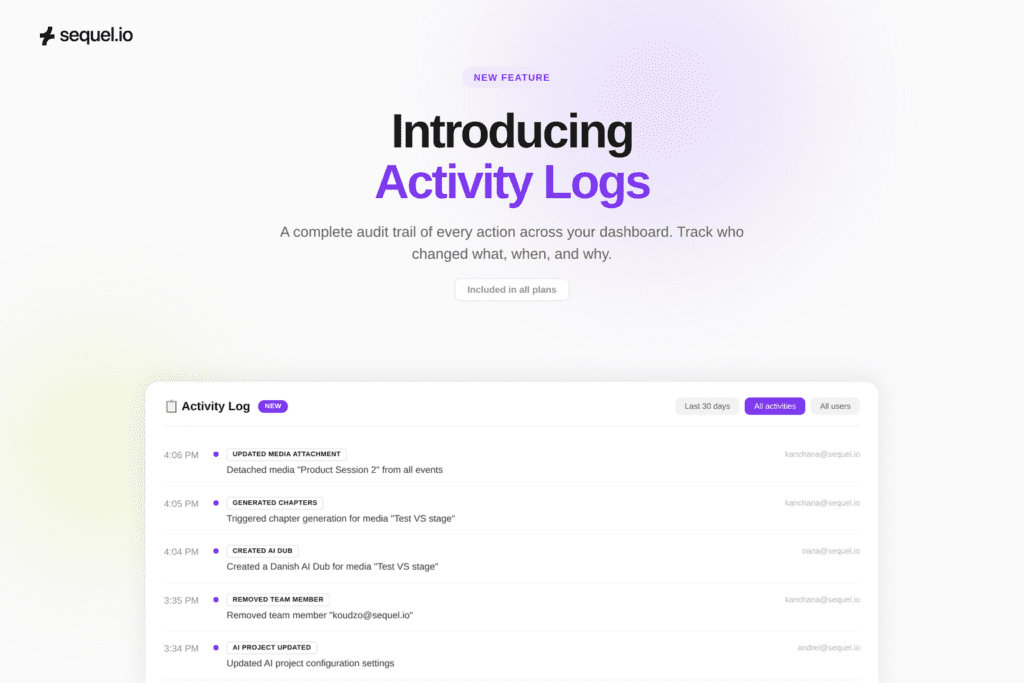
Activity Logs gives admins a filterable, searchable record of every action taken across the Sequel dashboard:
Every event edit, media change, widget update, integration setting adjustment, team permission change, email configuration, landing page modification, and certificate update is now tracked. Each log entry shows the user who made the change, the exact timestamp, and a description of what happened.
This is a continuous, real-time record of everything happening in your workspace, accessible from the main dashboard, from within a specific event, or from within a specific media file.
What You Can Actually Do With This
- Trace any change in seconds: Something looks off before a live event. Instead of asking around, open Activity Logs, filter by the relevant time window, and see exactly what changed and who changed it. Resolution starts immediately.
- Audit team activity across your workspace: Need to understand what a specific team member has been doing across the platform? Filter by user and see their complete activity history, from event creation to media uploads to permission changes.
- Troubleshoot integrations without filing a ticket: If an integration stops syncing or behaves unexpectedly, Activity Logs shows whether someone modified the integration settings and when. Your team can diagnose and resolve the issue without involving support.
- Onboard new admins with confidence: When new team members start working in the dashboard, Activity Logs gives you visibility into their actions so you can catch mistakes early and coach effectively, without hovering over their shoulder.
- Keep a clean workspace at scale: For enterprise teams running dozens of events per month, Activity Logs acts as the operational backbone that keeps everyone accountable and the workspace manageable.
How Teams Are Likely to Use This
A marketing ops lead notices that a HubSpot integration looks different than it did last week. She opens Activity Logs, filters by integration settings, and sees that a colleague adjusted the field mapping on Tuesday. Problem identified in under a minute.
An event manager is preparing for a live session and notices a registration widget is missing from the landing page. Instead of pinging the team, he checks Activity Logs for that event and sees that someone removed the widget while cleaning up a different page. He re-adds it and moves on.
A demand gen director wants to understand how her team is using the platform across their webinar program. She filters Activity Logs by user and reviews each team member’s activity over the past month. She uses this to identify workflow gaps and plan a team training session.
A customer success manager gets a question from a customer about why their event settings changed. She opens Activity Logs and walks the customer through exactly what happened, when, and who did it. No escalation needed.
Getting Started
Activity Logs are already live in your Sequel dashboard. You can access them from the main workspace for a full view, from within any event for event-specific activity, or from within a media file for asset-specific changes.
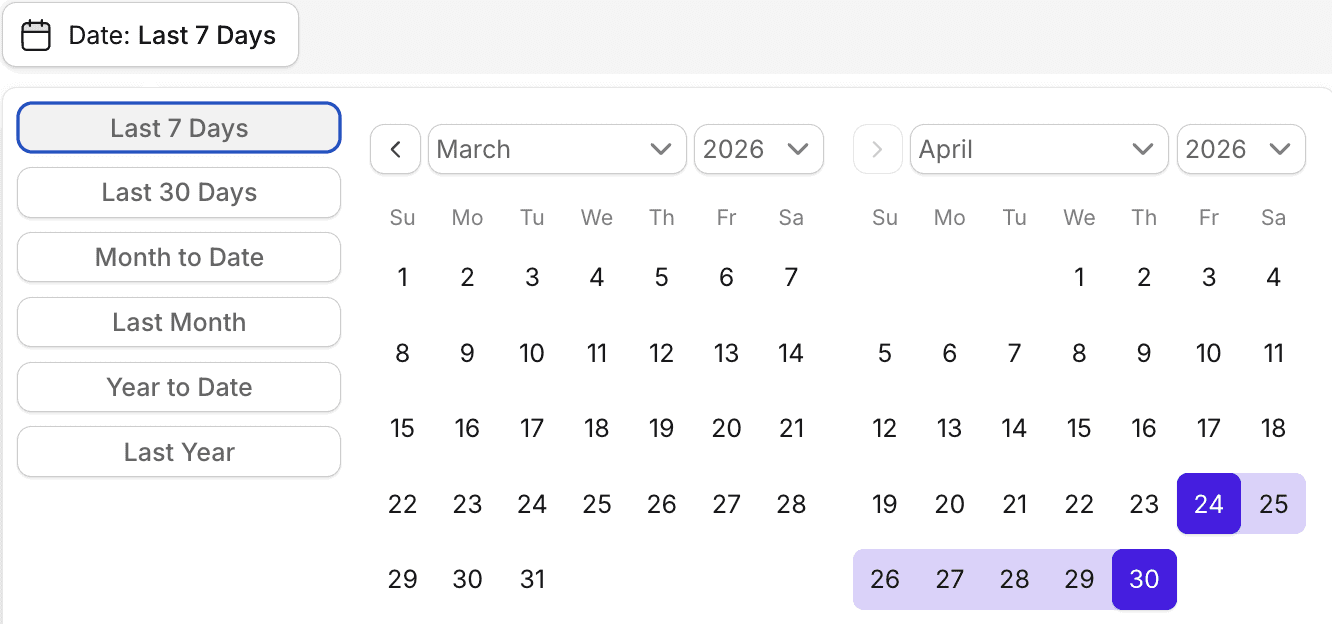
Filtering is available by date range (preset or custom), by activity category (events, widgets, media, team, email, landing pages, certificates, and more), and by individual user.
No setup is required. If you have admin-level access, Activity Logs are already available to you.
To learn more about how to use Activity Log filters, read the entire help article here.
Availability
Activity Logs are included in all Sequel plans at no additional cost. Admin-level access is required to view logs.
What This Sets Up
Activity Logs are the first step in a broader set of enterprise readiness features coming to Sequel. As the platform grows and teams get larger, operational visibility becomes foundational. The ability to see what happened, when, and who did it, without relying on memory or manual tracking, is something we’ll continue to build on throughout the year.
If you’re a current customer, Activity Logs are live in your dashboard today. If you’re evaluating Sequel, this is one example of how the platform is designed for teams that run events at scale, not just teams that host them.
Frequently Asked Questions
What are Activity Logs?
Activity Logs are a filterable record of every action taken across your Sequel dashboard. Each log entry shows the user who made the change, the exact timestamp, and a description of what happened.
What actions are tracked?
Activity Logs cover events, widgets, media, team permissions, email configurations, landing pages, certificates, integration settings, and more. You can see the full list of categories in the filter section.
Where can I access Activity Logs?
Activity Logs are accessible from three places: the main workspace (for a full view across all activity), within a specific event or series (for event-level activity only), and within a media file in the Media Hub (for asset-level activity only).
Can I filter Activity Logs?
Yes. You can filter by date range (preset or custom), by activity category, and by specific user.
Who can view Activity Logs?
Activity Logs are available to admin-level users only.
Which plans include Activity Logs?
Activity Logs are included in all Sequel plans at no additional cost.
Do Activity Logs track backstage or virtual stage activity during live events?
No. Activity Logs cover dashboard activities only, not backstage or virtual stage actions. If you’re looking for something specific related to live event activity, reach out to your CSM.
Do Activity Logs track CRM sync activity?
CRM sync activity is tracked separately in CRM Logs. You can learn more about CRM Logs here.