Chat + Survey Automations
Running a live webinar means doing several things at once:
- You’re hosting
- You’re monitoring the chat
- You’re watching for questions
- You’re keeping the energy up
And somewhere in the middle of all of that, you’re supposed to remember to trigger a welcome message at minute one, a survey at minute 25, and a follow-up prompt at minute 30.
Sequel’s automation tab already solved this for polls, CTAs, and resources. Teams could schedule those to fire automatically during live and simulive events. Set the timing, and they ran themselves.
But chat messages and surveys still required someone to manually publish them during the session. That meant one person on the team was always partly focused on the operational side of the event instead of the experience itself.
Starting today, that’s no longer the case.
The Problem with Manual Triggers During Live Events
The teams that run the most events on Sequel have been clear about where the friction lives: the live production.
When you’re hosting a session with 200 attendees, the difference between a smooth experience and a scrambled one often comes down to whether the right engagement appeared at the right moment. A welcome message that shows up 30 seconds after someone joins sets the tone. A feedback survey that appears during the wrap-up catches people while they’re still engaged. A mid-session chat prompt reminding attendees to submit questions keeps the Q&A pipeline full.
When these are automated, the experience feels intentional. When they’re manual, they depend on someone remembering, someone watching the clock, and someone not getting distracted by the live conversation happening on screen.
For teams running a few events a month, manual triggers are manageable.
But for teams running them weekly or running multiple sessions in parallel, it’s one more thing that can go wrong and one more reason the person hosting can’t fully focus on the audience.
Why Partial Automation Creates Its Own Problems
Before today, the automation tab supported polls, CTAs, and resources. That covered a significant portion of the engagement timeline, but it left two of the most commonly used engagement types out: chat messages and surveys.
This created an inconsistency.
Some parts of the engagement timeline ran automatically while others required someone to be watching the clock and manually publishing at the right moment. Teams built workarounds:
- Some used external timers
- Some assigned a dedicated person to handle chat and survey triggers
- Some just accepted that timing would be approximate and moved on.
The result was that even teams using automation still had manual dependencies during their most important events. The automation tab solved 60% of the problem, but the remaining 40% was enough to keep someone tethered to the operational side of production.
Chat Messages and Surveys Now Run on the Same System
Starting today, chat messages and surveys work exactly like polls, CTAs, and resources in the automation tab. The workflow is identical, the interface is the same, and the only difference is that now every type of engagement can be scheduled in advance and triggered automatically.
This means you can build a complete engagement timeline for any event before it starts. Welcome messages, polls, CTAs, resources, mid-session chat prompts, feedback surveys.
All of it pre-scheduled.
During the event, the person hosting can focus entirely on the conversation. The engagement timeline runs in the background, the same way it does for polls and CTAs, with no manual intervention needed.
What You Can Now Schedule
- Chat messages at any point during the event: Welcome messages when attendees join. Reminders to submit questions before the Q&A segment. Links to related resources mid-session. Follow-up prompts during the wrap-up. Any message you’d normally type or trigger manually can now be scheduled in advance.
- Surveys at the moment they’ll get the best response rate: Post-session feedback surveys are most effective when they appear while attendees are still engaged, not in a follow-up email two hours later. Scheduling a survey to appear at minute 28 of a 30-minute session catches people at the right moment, consistently, every time.
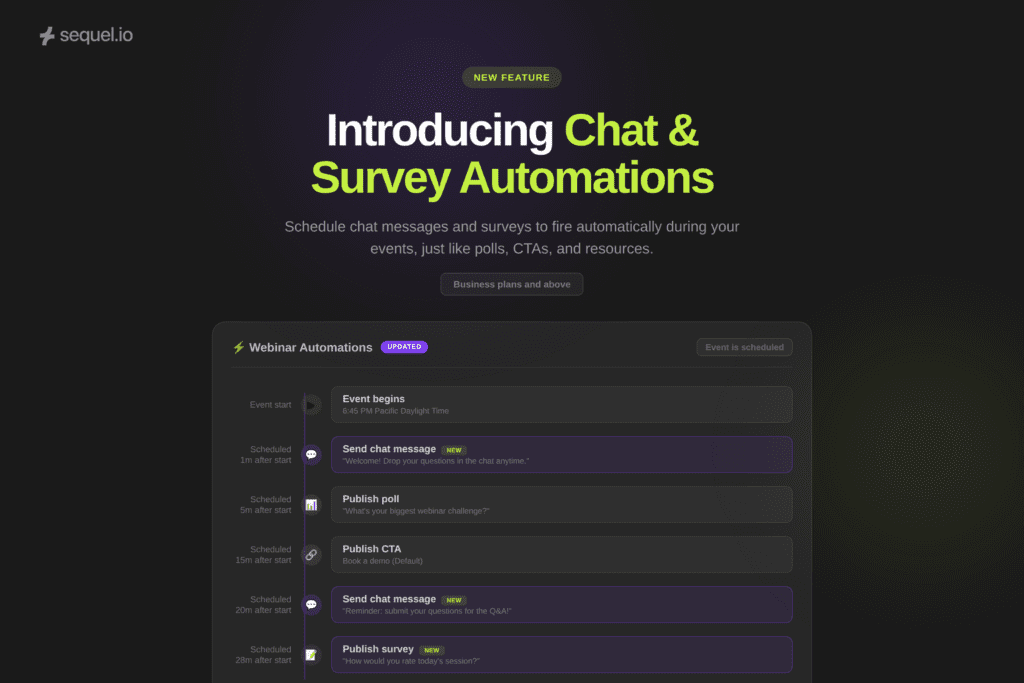
- A full engagement timeline visible in one view: The automation tab now shows your complete plan for the event: polls, CTAs, resources, chat messages, and surveys, all in chronological order with their scheduled times. You can see exactly what your audience will experience and when, before the event starts.
How Teams Will Use This
A demand gen team running a weekly webinar series builds a standard engagement template: welcome chat at minute one, poll at minute five, CTA at minute 15, Q&A reminder chat at minute 20, feedback survey at minute 28. They apply this template to every session and adjust the specific content as needed. The structure stays consistent across the series without anyone managing it live.
A product marketing team hosting a launch webinar wants to capture real-time feedback on the new feature being demonstrated. They schedule a short survey to appear right after the demo segment, while reactions are fresh. The host never has to pause the presentation to trigger it.
A field marketing team running a regional roundtable wants to set the tone immediately. They schedule a welcome chat message that greets attendees by name and shares the agenda, followed by an icebreaker poll two minutes in. The moderator can focus on introductions instead of toggling between the chat and the production controls.
A customer success team hosting a quarterly business review webinar for a key account schedules a satisfaction survey at the end. Because it appears automatically, the CS lead doesn’t have to awkwardly interrupt the wrap-up conversation to ask people to fill out a form.
Getting Started
Chat and survey automations are available in the same automation tab you already use for polls, CTAs, and resources.
To set them up, build out your chat messages and surveys in the event’s virtual backstage, then navigate to the automation tab in event settings and select “Add Automation.”
Choose the engagement type (chat message or survey), set the timing, and save.
Once scheduled, automations will be locked during the live event and will trigger automatically at the times you set.
No new interface or additional setup required. If you already know how to schedule a poll automation, you already know how to schedule a chat or survey automation.
To learn more, read the full help article here.
Availability
Chat and survey automations are available to all Sequel customers on Business plans and above, at no additional cost.
Building Toward Fully Automated Event Production
This release is part of a broader direction for the Sequel platform. The automation tab started with polls, CTAs, and resources. Today it includes chat messages and surveys. Over time, the goal is to make every aspect of live event production something that can be planned in advance and executed automatically, so the people hosting your events can focus entirely on the humans in the room.
If you’re a current customer, chat and survey automations are live in your dashboard today. If you’re evaluating Sequel, this is an example of how the platform reduces the operational overhead of running events at scale.
Book a demo to learn more about Sequel.
Frequently Asked Questions
What are Chat and Survey Automations?
Chat and Survey Automations let you schedule chat messages and surveys to publish automatically during live and simulive events, the same way you already schedule polls, CTAs, and resources in the automation tab.
How do I set up a chat or survey automation?
Build out your chat messages or surveys in the event’s virtual backstage, then navigate to the automation tab in event settings. Select “Add Automation,” choose chat message or survey as the type, set the timing, and save.
Can I schedule multiple chat messages in a single event?
Yes. You can schedule as many chat messages and surveys as you need, alongside your existing poll, CTA, and resource automations. All are visible in one timeline view.
Who does the chat message appear to come from?
Automated chat messages come from the admin who created the automation.
Can I edit automations after the event starts?
No. Once the event is live, the automation timeline is locked and will execute as scheduled. You can add or edit automations at any time before the event starts.
Do chat and survey automations work for on-demand events?
Chat and survey automations are available for live and simulive events.
Which plans include Chat and Survey Automations?
Chat and Survey Automations are available to all Sequel customers on Business plans and above, at no additional cost.
Do I need any additional setup or technical skills?
No. If you already know how to schedule a poll or CTA automation, the process is identical for chat messages and surveys. No coding or technical setup required.