CRM Logs
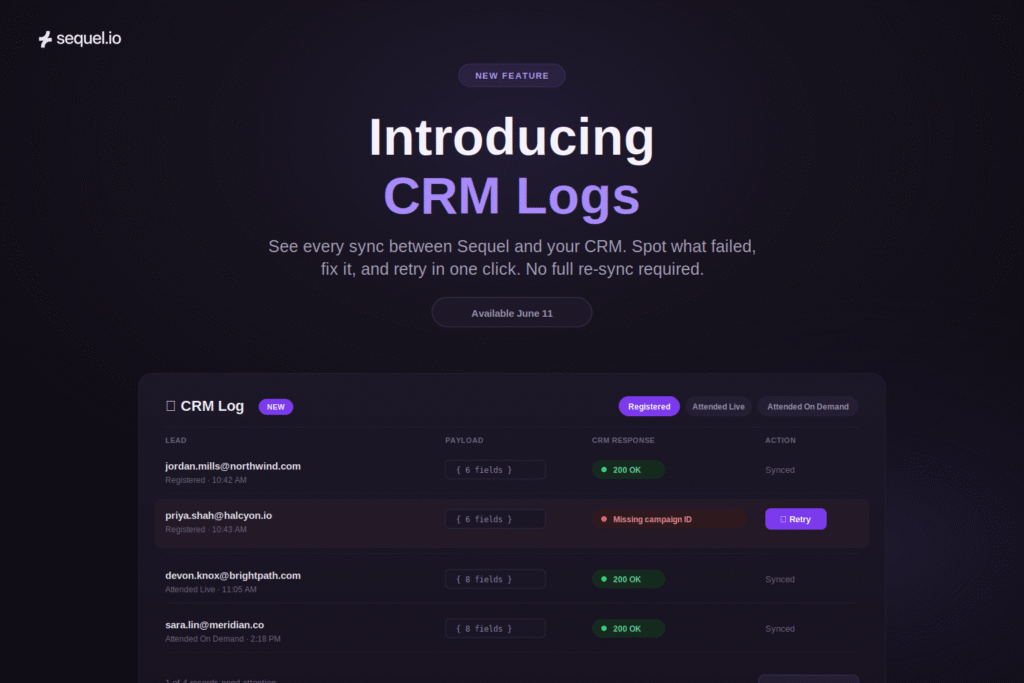
A webinar ends. Two hundred people registered, 140 showed up, a dozen asked questions. The event went well.
Three days later, someone on the sales team asks why a hot prospect never got assigned to a campaign in Salesforce. You start digging. The attendance data looks right in Sequel. But somewhere between Sequel and your CRM, something didn’t make it across, and now you’re exporting lists, cross-referencing records, and trying to reconstruct what synced and what didn’t.
By the time you find the problem, the lead has gone cold and you’ve lost an afternoon.
The data was there, but the sync just didn’t do what you expected, and you had no way to see that until the damage was already done.
Now, with Sequel, CRM Logs close that gap. For every event, you get a complete record of exactly what Sequel sent to your CRM, what your CRM sent back, and a one-click way to fix and retry anything that failed.
The Problem With Syncs You Can’t See
When Sequel pushes data to your CRM, a lot happens behind the scenes. A lead registers, and that registration becomes a record in Salesforce. They attend live, and their status updated or watch on demand later, and that gets pushed too. Multiply that across every attendee and every event, and a single webinar generates hundreds of individual data operations.
Most of the time, it works. But when it doesn’t, you usually find out the slow way.
A field mapping is off, or a campaign ID didn’t get assigned, or a required field is missing. The sync fails quietly, and nothing tells you until someone downstream notices a record that should be there and isn’t. By then, troubleshooting means opening a support ticket, waiting for someone to dig through backend systems, and hoping they can tell you what happened.
The core issue is visibility. You can see the data in Sequel. You can see the data in your CRM. What you can’t see is the handoff between them, which is exactly where things break.
What CRM Logs Shows You
CRM Logs gives every event its own CRM Log tab. Open it and you see all of your leads and every payload Sequel sent to your CRM, organized by status: Registered, Attended Live, and Attended On Demand.
For each one, you can click in and see the complete record of the sync.
1. The Exact Payload Sent
You see precisely what Sequel sent to your CRM for that lead. Not a summary, the actual payload. If you need to confirm whether a specific field made it across or check what value got pushed, it’s right there.
2. The Response Your CRM Returned
Next to the payload, you see what your CRM sent back. If Salesforce accepted the record, you see the success response. If it rejected it, you see the error, which tells you exactly why the sync failed instead of leaving you to guess.
3. Every Previous Attempt
CRM Logs keeps the history. If a sync failed, got fixed, and ran again, you can see each attempt in order. That history is what lets you understand what changed and confirm that your fix actually worked.
Fix It and Retry on the Spot
Visibility is half the feature. The other half is being able to act on what you see.
When CRM Logs shows you a failed sync, you can fix the underlying problem and re-push the data yourself, immediately, without re-syncing your entire event.
Here’s the kind of thing it solves:
You run an event, and a few hours later you realize you forgot to assign your Salesforce campaign ID before the data pushed. In the old world, you might not catch that for days, and when you did, you’d be re-syncing everything to fix it. With CRM Logs, you spot it in the log, assign the campaign ID, and hit retry. The data pushes over correctly.
You can retry a single lead’s sync, or select all of them and retry the whole list. Either way, you’re fixing the specific problem and re-triggering the specific flows you want, rather than blowing away good data to recover the records that failed.
How Teams Will Use This
A marketing operations lead notices that Salesforce records from a recent webinar aren’t matching the expected attendance data. Instead of spending an hour cross-referencing exports and opening a support ticket, they open the event’s CRM Log tab. The log shows that most records synced fine, but a handful failed because of a field mapping issue.
They fix the mapping, hit retry on the failed records, and they’re done in ten minutes.
An event marketer forgets to assign a campaign ID before the post-event sync runs. A few hours later, reviewing the CRM Log, they catch it. They assign the campaign, retry the list, and every lead lands in the right campaign, no full re-sync required.
A demand gen manager wants to confirm that a high-value prospect’s attendance actually made it into Salesforce before a sales handoff. They open the CRM Log, find the lead, and see the exact payload and the success response from Salesforce. Confirmed in seconds, no exporting required.
A RevOps team troubleshooting an intermittent sync issue uses the attempt history to see exactly when records failed and when they recovered. The pattern points them to the root cause faster than backend log requests ever could.
Getting Started
CRM Logs is available starting June 11, 2026.
There’s no setup or configuration required. Logging begins automatically. You’ll find a CRM Log tab on each of your events, where you can review every payload sent, every response received, and retry any sync that needs it.
Frequently Asked Questions
What Is CRM Logs?
CRM Logs is a per-event record of every data sync between Sequel and your CRM. For each lead, it shows the exact payload Sequel sent, the response your CRM returned, and the history of any previous attempts. You can retry failed syncs directly from the log.
What Data Does It Track?
CRM Logs captures the payloads Sequel sends to your CRM for each lead, organized by status: Registered, Attended Live, and Attended On Demand. For each one, you can see what was sent, what came back, and every prior attempt.
How Does This Help With Sync Issues?
When a sync fails, CRM Logs shows you the error your CRM returned, so you know exactly what went wrong. You can fix the underlying issue, like a missing campaign ID or a field mapping error, and retry the sync from within the log, without re-syncing the entire event.
Can I Retry a Failed Sync?
Yes. You can retry an individual lead’s sync or select all and retry the whole list. CRM Logs re-triggers only the flows you choose, so you fix what failed without disturbing records that synced correctly.
Do I Need to Configure Anything?
No. CRM Logs captures sync activity automatically. There’s no setup and no need to enable it per event. The CRM Log tab appears on your events and starts recording on its own.
Is There Anything I Need to Do to Get Started?
No. CRM Logs will be available automatically as part of the June 11 release. No migration, upgrade, or additional purchase is required.